How to Use the Spaceship Inventory in Atomcraft
Transfer exact counts, search smarter, and keep ship storage organized
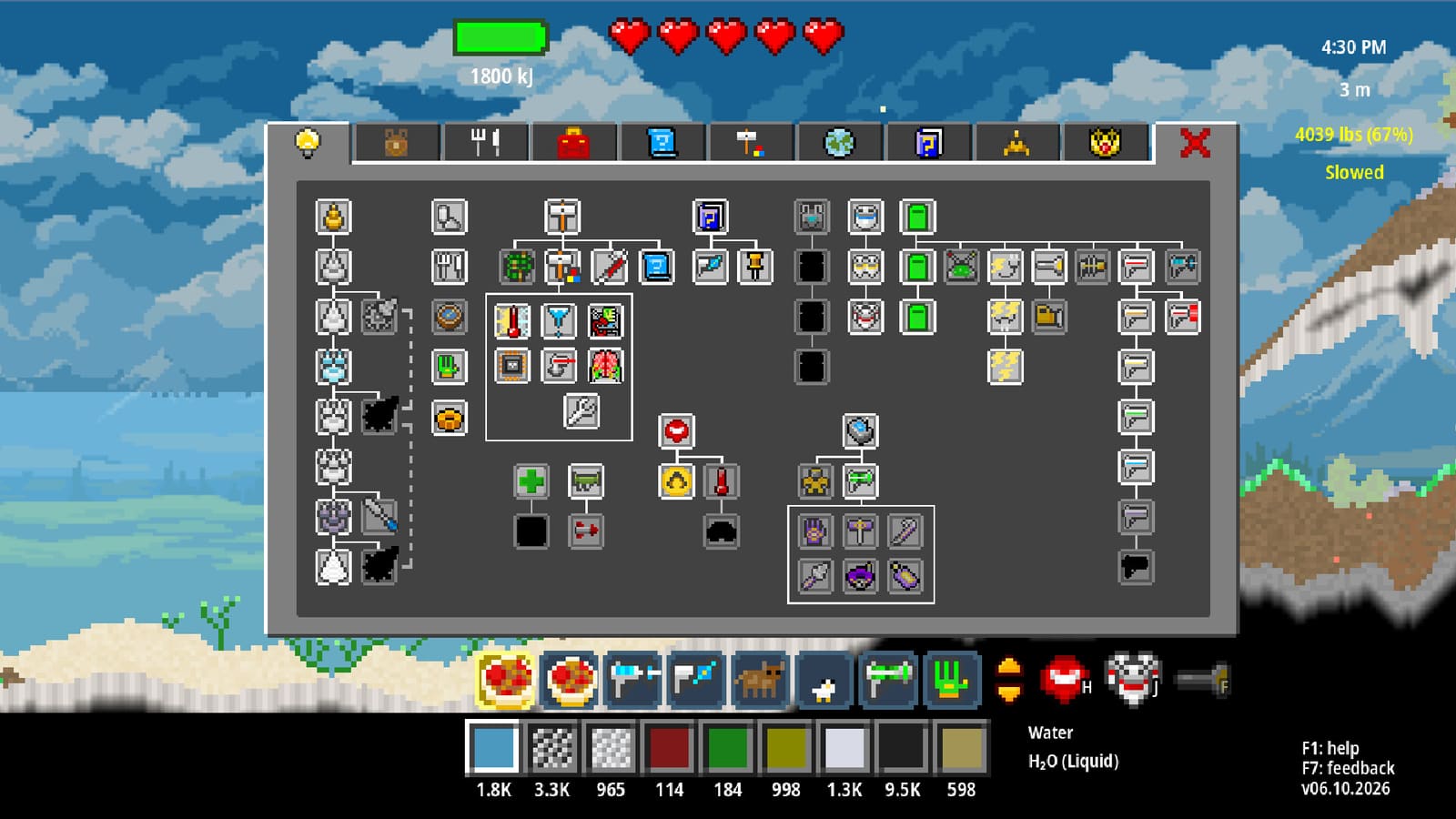
How to Use the Spaceship Inventory in Atomcraft
The Spaceship Inventory screen is where field loot becomes ship progress. Recent devlogs turned it from a simple dump zone into a precision tool: transfer an exact pixel count, search by chemical formula, filter cooking ingredients, and see at a glance what you already banked for spaceship repair. This guide walks through every major QoL feature added between May and July 2026 so restoration runs stay fast and Research Points never stall on the wrong sample.
Opening and using the screen
Open the Spaceship Inventory when you return from a dig, forge session, or electrolysis batch. The layout mirrors your player material inventory but targets the ship’s hold — the same interface patterns apply to both, which matters once you learn one workflow and reuse it everywhere.
Typical session flow:
- Teleport or walk to the ship (World Map zoom and teleport cuts travel time once unlocked).
- Open Spaceship Inventory beside your player inventory.
- Transfer materials needed for restoration or long-term storage.
- Cross-check what the ship still lacks against your Research Points goals.
- Lock frequently used slots on the HUD so hotbar swaps stay stable — locked slots now show the material name to the right, not just a colored square.
Pair the screen with the Material Belt so courier pixels you move today stay one scroll away tomorrow.
Gradual transfer and exact pixel counts
May 16, 2026 removed the old minimum-chunk frustration: Spaceship Inventory supports gradual transfer with no forced minimum. Drag or click across stacks without the game rounding up to awkward batch sizes.
June 24, 2026 went further — you can move a specific number of pixels. When a restoration panel asks for exactly twelve Cuprite pixels and you are carrying eighty, split the stack instead of dumping the whole pile into ship storage and re-sorting by hand.
Practical habits:
- Leave a tool buffer in player inventory; ship the surplus only.
- Pre-stage courier chests at your base, then move precise counts into the ship hold in one visit.
- When batching several elements for restoration, transfer each count before closing the UI so nothing gets mixed on the floor.
Exact transfers matter most during spaceship repair — deliver the sample the panel expects without accidentally committing your last Steel ingot.
Formula search modes
July 6, 2026 added Formula search modes across material inventory, reaction search, and Spaceship Inventory. Click the mode button beside the search box to cycle:
- Name Only — matches display names (“Cuprite”, “Hematite”).
- Formula Only — matches chemical formulas when names blur together.
- Name + Formula — searches both fields at once.
Use Name Only for everyday ore sorting. Switch to Formula Only when isotopes, acids, or polymorphs share similar labels — common late game when fallout and synthetic routes multiply products. Name + Formula is the safe default when you half-remember a compound but not its spelling.
The same cycling works in player inventory and reaction search, so muscle memory from one screen applies everywhere.
Ctrl-F search focus
June 15, 2026 bound Ctrl-F to highlight and focus the search text box in inventory UIs, including Spaceship Inventory. Tap it the moment the panel opens instead of clicking the field — especially useful when both inventories are open and your mouse is already dragging stacks.
Full default bindings live on Controls Hotkeys. Rebind in settings if Ctrl-F conflicts with another tool; the focus behavior is identical wherever inventory search appears.
Food Ingredients filter
Also June 15: a Food Ingredients filter for Player and Spaceship Inventory. Toggle it when meal prep clutters a chemistry sort — hide everything that is not a cookable ingredient so flour, meat, and crop pixels surface without scrolling past Cuprite and charcoal.
Workflow tie-in:
- After a farm run, filter Food Ingredients on the player side, cook what you need, then store surplus meals in the ship hold.
- Before a restoration day, turn the filter off so elemental samples reappear.
- Combine with Material Tracking (eye button) if one staple ingredient keeps running out between digs.
Inventory + Ship visibility toggle
July 21, 2026 made the Inventory + Ship visibility toggle save and restore between sessions. When enabled, material lists show whether a pixel already exists in player inventory, ship storage, or both — critical while restoring elements for Research Points.
Turn it on before a restoration batch so you stop mining Columbite you already banked on the ship. Turn it off when you want a clean list for screenshotting a factory layout. The game remembers your choice; you set it once per play style, not every login.
Locked HUD material names
July 19, 2026 improved locked hotbar slots: a locked HUD material now shows its name to the right of the slot, not only the pixel swatch. Lock courier staples — charcoal, Cuprite, Lye — before long cave trips so accidental swaps do not silently replace your dig tool tier.
Press L on a hovered slot to lock or unlock (see Controls Hotkeys). Names beside locked slots reduce “why did my pipette grab the wrong pixel?” moments when ten similar ores sit in adjacent belt rows.
Watch: launch-era inventory QoL
Restoration and travel checklist
- Track missing elements before leaving base.
- Filter Food Ingredients only during kitchen sorting.
- Search with Formula mode when names collide.
- Transfer exact counts into ship storage.
- Toggle Inventory + Ship visibility during restoration weeks.
- Lock HUD slots and read names beside them on expeditions.
- Teleport via World Map when the ship is far from your dig site.
Late July 2026 inventory QoL
July 2026 hotfixes polished the Spaceship Inventory screen without changing its core workflow. These tweaks reduce mis-clicks and make phase sorting faster during restoration weeks.
- Phase-of-matter icons now appear in the Ship Inventory list so solid, liquid, and gas pixels are distinguishable at a glance.
- Phase-of-matter labels also show in the hovered pixel tooltip — useful when two similar ores differ only by melt state.
- Transfer dialog cursor lands at the end of the existing number when you open a quantity field, so you can type a new count without selecting the whole value first.
- Non-negative numbers only in the transfer field — negative input is rejected, preventing accidental reverse dumps.
- Search scrollview jumps back to the top when you update a search, so filtered results always start from the first match instead of leaving you mid-list.
Pair phase icons with Formula search modes when late-game fallout adds gas and melt variants beside the same element name.
Related guides and tools
- How to Repair Your Spaceship
- How to Get Research Points
- World Map Zoom and Teleport
- Controls Hotkeys
- Material Belt
- How to Track Materials
- Guides Hub
Spaceship Inventory is not warehouse trivia — it is the handshake between your dig kit and the hull. Learn precise transfers, search modes, and visibility toggles once; every restoration run after that ships the right pixels on the first try.
Frequently Asked Questions
Quick answers tied to this page.
How do I transfer a specific number of pixels in Spaceship Inventory?
Open Spaceship Inventory, select the stack, and enter the exact count you want to move. The June 2026 update supports precise transfers without dumping entire piles.
What are the Formula search modes in Spaceship Inventory?
Click the mode button beside search to cycle Name Only, Formula Only, and Name+Formula. The same modes work in player inventory and reaction search.
Does Ctrl-F work in Spaceship Inventory?
Yes. Ctrl-F highlights and focuses the search box in Spaceship Inventory and other inventory screens.
What does the Food Ingredients filter do?
It hides non-food materials so cookable ingredients are easy to find in both Player and Spaceship Inventory.
What is the Inventory + Ship visibility toggle?
When enabled, material lists show whether items are already in your player inventory, ship storage, or both. The setting saves between sessions.