How to Use the F1 Help System in Atomcraft
Unlockable tips, Material Guide pins, formula search, and recipe middle-click
How to Use the F1 Help System in Atomcraft
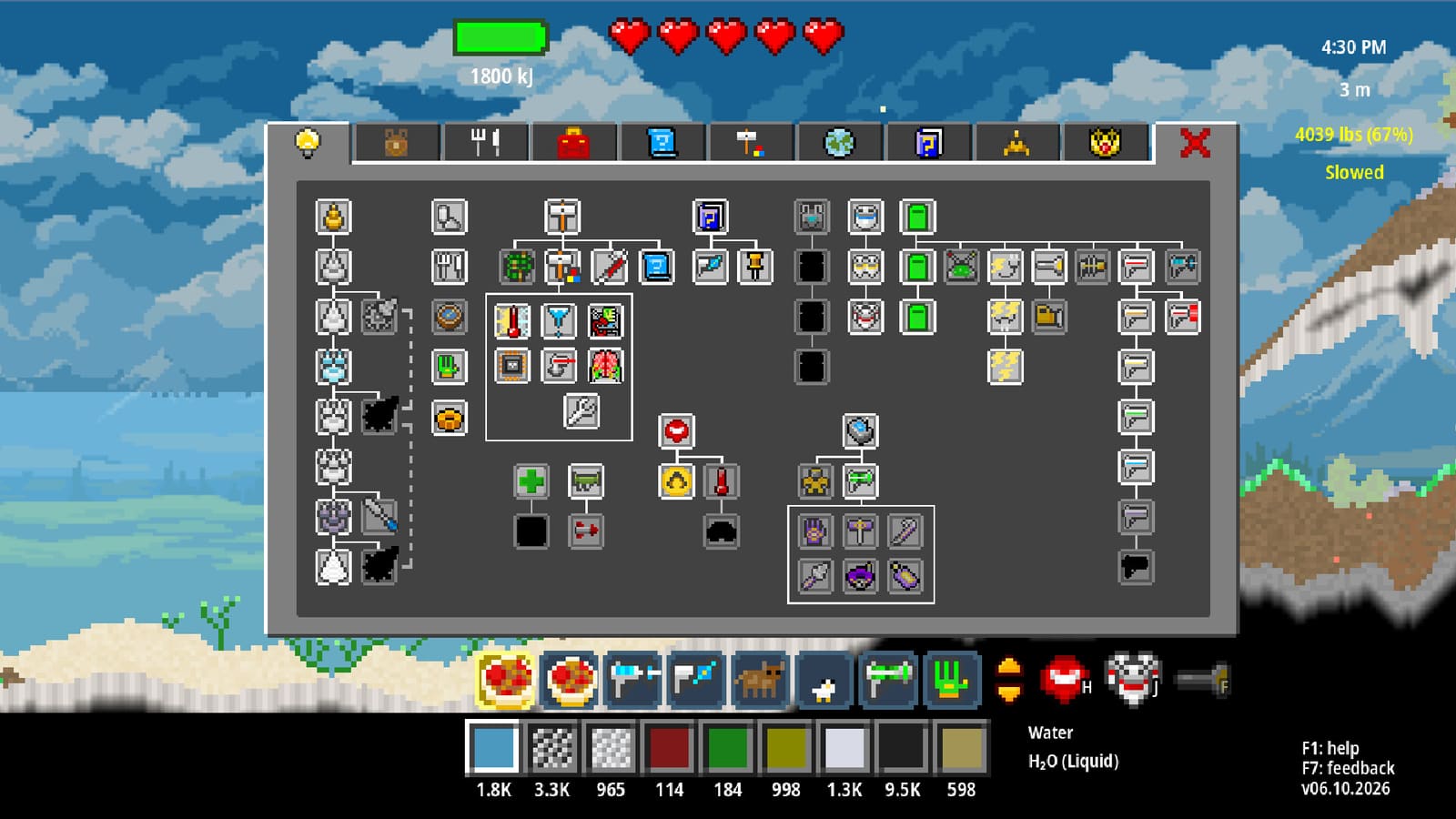
The F1 Help System is Atomcraft’s in-game encyclopedia: official tooltips, unlockable tips, the Material Guide, recipe pins, and search modes that turn experimentation into progress instead of guesswork. This guide explains how to open Help, what unlocks as you play, and how to pair F1 with tracking, formula search, and middle-click recipe workflows. If you are still learning movement and drills, start with How to Play Atomcraft and return here once F1 feels essential.
Press F1: your chemistry reference desk
On keyboard, F1 opens the Help System overlay. It sits beside F (flashlight) and Enter (interact) in the muscle-memory stack every Atomcraft player builds early. Controller players should map an equivalent Help action—see Controls Hotkeys for binding details and the July 2026 Reset to Defaults option if keys feel wrong.
Help is not a spoiler dump. It reveals unlockable tips tied to what you have already discovered: forge geometry, ore sources, crop loops, animal products, cooking chains, mechanical pixels, and late chemistry. Until you touch a system, some tabs stay quiet—that is intentional discovery pacing.
Watch: Atomcraft beginner overview
The video below shows the first-hour loop where F1 and the Material Guide matter most: identifying pixels, planning charcoal, and choosing the next ore target.
Unlockable tips: what F1 teaches as you progress
Atomcraft rewards curiosity, but F1 organizes what you learn so you do not rebuild the same wrong forge three times. Expect tips to appear in clusters:
Forge design tips
Once clay and charcoal enter your inventory, Help explains double clay U-shapes, bottom-chamber fuel, and why thin walls bleed heat. Pair those tips with How to Build a Forge in Atomcraft and the wiki forge design pages when you want layout diagrams. F1 answers why the chamber needs charcoal below ore; the forge guide walks placement step-by-step.
Ore source tips
When you discover Cuprite, Cassiterite, Hematite, Fluorite, or deeper ores, Help and the Material Guide list where those pixels usually appear and what drill hardness you need. That is your antidote to twenty-minute random digs. Cross-check biome hints on the Materials Overview when you plan a dedicated mining trip.
Crop tips
Late July 2026 added Grass Seed: mine from Grass, plant on Dirt or Loam for renewable surface cover. F1 crop entries explain planting loops once you have seeds—useful for staging areas, aesthetic bases, and food-adjacent farming before you commit shafts toward limestone caves. NPC friendship tiers also introduce specialty seeds when trading unlocks.
Animal tips
Animals tie into NPC trading, friendship gifts, and cooking ingredients. Help entries for animal products appear after you encounter livestock, slimes, or merchant stock—often mid-game when barter loops matter. Track staple animal goods with the eye button if you keep running out mid-recipe.
Cooking tips
The July 2026 Cooking tab lists recipes craftable from your current inventory while keeping discovery intact. F1 beside Cooking explains unfamiliar ingredient pixels without spoiling unrelated chemistry. Open Help when cheese, sandwich, or steak chains show a gap you cannot name. Full meal routines live in How to Cook Food in Atomcraft.
Material Guide integration inside F1
The Material Guide lives inside the Help System. It is more than a glossary:
- Look up hardness, phase, and reaction hints for any pixel name.
- Jump from a discovered ore to related products and inputs.
- Pin materials for tracking sparkles through fog of war (see below).
- Filter inventories with Food Ingredients when meal prep clutters a chemistry sort.
Think of F1 as what is this pixel? and the Material Guide as what do I do with it next? The Materials Overview wiki page mirrors that split for second-monitor reading.
Eye-button tracking
Click the eye button on a Material Guide entry to pin that material. Sparkling effects then mark deposits in the world—even through fog of war. This is one of Atomcraft’s strongest quality-of-life upgrades near full release.
Workflow:
- Open F1 → Material Guide.
- Find the ore or element you need (Cuprite early, Cassiterite after Copper drill, etc.).
- Click eye to add it to your pinned list.
- Return to the world and follow sparkles instead of guessing hardness bands.
Deep dive: How to Track Materials in Atomcraft.
Recent updates also save whether the UI shows if a material is already in Inventory + Ship—toggle that while restoring elements so you stop over-mining banked samples.
Formula search modes
July 6, 2026 added Formula search modes across material inventory, reaction search, and Spaceship Inventory. Click the mode button beside the search box to cycle:
| Mode | Best for |
|---|---|
| Name Only | Human-readable ore and meal names |
| Formula Only | Distinguishing similar display names by chemistry |
| Name + Formula | Broad searches when you half-remember both |
When tracked materials share similar labels—gas variants, melt phases, diatomic forms—switch to Formula Only so pinned chemistry stays unambiguous. Pair modes with phase-of-matter icons in ship inventory lists for late-game fallout sorting.
Pinned recipes and middle-click
Another launch-window QoL link: middle-mouse-click pinned recipe ingredients to assign them to your currently selected material slot. That turns a pinned multi-step recipe into a gathering checklist:
- Pin a recipe chain in Help or the Cooking tab.
- Middle-click each ingredient into hotbar or Material Belt rows.
- Dig or pipette only what sparkles highlight—Left-Ctrl still picks the exact pixel type from mixed piles.
Combine middle-click pins with the Material Belt (ten shortcut rows) and slot L locks so acid, fuel, and experiment rows do not overwrite each other mid-run.
A practical F1 session loop
Use this loop whenever progress stalls:
- Open F1 — read the newest unlockable tip for your current bottleneck.
- Material Guide — confirm hardness and sources for the next ore or meal.
- Eye pin — one priority material only; too many sparkles become noise.
- Formula mode — switch if search results look ambiguous.
- Middle-click — load pinned ingredients into slots before leaving base.
- Play — dig, smelt, cook, or restore; return to F1 when a new pixel appears.

F1 versus this wiki
Help is authoritative inside the client: patch-day numbers, official tooltips, and your save’s discovered set. This wiki adds multi-step walkthroughs, biome maps, and build galleries F1 cannot host. Standard split:
- In-game F1 — identify pixels, pin tracking, filter recipes from current inventory.
- Wiki guides — forge-to-steel chains, ship restoration logistics, automation wiring.
Keep F1 open on a laptop beside the game, or alt-tab here when you need a procedure longer than one tooltip.
Common Help System mistakes
- Ignoring F1 until mid-game, then losing hours to wrong forge shapes or drill tiers.
- Pinning ten materials at once so sparkles overlap and mean nothing.
- Searching Name Only when Formula Only would separate gas from melt variants.
- Forgetting middle-click after pinning a recipe—pins are reminders, not auto-loadouts.
- Skipping crop and animal entries because “Atomcraft is chemistry”—NPC and cooking loops still gate session length.
Checklist: Help System mastery
- F1 opened at least once per session when a new pixel appears.
- One eye-pinned priority ore aligned with your next drill upgrade.
- Formula search mode chosen intentionally—not left on default forever.
- Cooking tab checked before long digs; F1 consulted for unknown ingredients.
- Forge, ore, crop, and animal tips read before building a second hearth or farm zone.
- Hotkeys reviewed so F1, F, Enter, and Left-Ctrl feel automatic.
Where to go next
Continue with How to Play Atomcraft if controls still feel foreign. When metals matter, open How to Build a Forge. For sparkle hunting, read How to Track Materials. Browse every sibling page from the Guides hub.
Atomcraft expects you to experiment—but F1 exists so every experiment teaches something permanent. Read unlockable tips when they appear, pin what you need, search with the right formula mode, and middle-click your next recipe before you leave camp. The sandbox opens faster when Help works as hard as your drill.
Frequently Asked Questions
Quick answers tied to this page.
How do I open the Help System in Atomcraft?
Press F1 on keyboard to open the Help System overlay. Controller players should map an equivalent Help action—see the Hotkeys page for binding details.
What are unlockable tips in the F1 Help System?
Unlockable tips are contextual Help entries that appear after you discover related systems—forge design, ore sources, crops, animals, cooking, and late chemistry. They teach without spoiling content you have not touched yet.
How does the Material Guide eye button work?
Click the eye button on a Material Guide entry to pin that material. Sparkling effects then mark deposits in the world, including through fog of war.
What are Formula search modes in Atomcraft?
Name Only, Formula Only, and Name+Formula modes filter inventory and reaction searches. Cycle the mode button beside the search box—use Formula Only when similar display names confuse results.
What does middle-click do on pinned recipe ingredients?
Middle-mouse-clicking a pinned recipe ingredient assigns it to your currently selected material slot, so you can load a gathering checklist before leaving base.