Atomcraft World Map Zoom, Pan, and Teleport
Navigate larger digs, search materials, and warp between repaired ships.
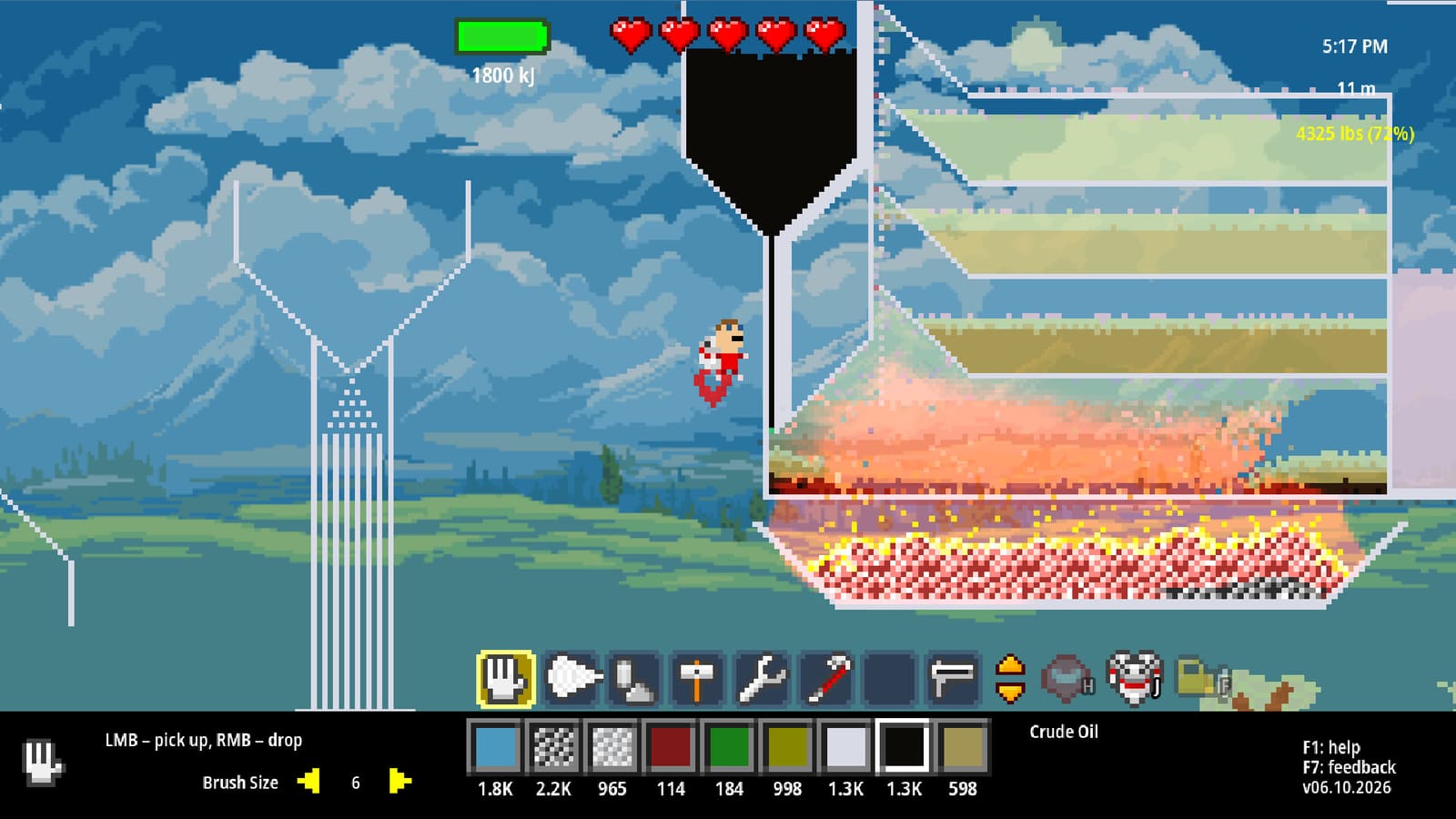
Atomcraft World Map Zoom, Pan, and Ship Teleport
Atomcraft’s world map matured quickly around launch: you can zoom and pan, search for materials without crashing on empty queries, and teleport to repaired friendly spaceships. This page is the practical navigation manual for long Buried City runs and multi-ship restoration routes.
Zoom and pan controls
A July 2026 update finally added world map zoom and pan. You can use:
- Scroll / zoom gestures to change scale
- Click-and-drag panning
- Scrollbars where available
Use zoom-out to plan shaft routes between surface camps and limestone layers, then zoom-in to confirm Cobaltite rooms or ship markers before committing jetpack time.
Material search on the map
The map supports searching for materials, which pairs beautifully with Material Tracking. Important bugfix: searching with an empty query was blocked because it previously overloaded the game by scanning every material. Always type a real name — Cuprite, Fluorite, Columbite — before searching.
If you cannot find Columbite, Pyrolusite, or Rubies, try map search before assuming a bad seed. Developer replies on community threads often ask whether map search was used.
Teleport to repaired ships
Another major navigation upgrade: teleport to any friendly spaceship you have repaired. On the world map, click a ship marker; the tooltip shows whether the ship is repaired or still broken. Repaired ships become warp points.
This changes expedition design:
- Restore a forward ship near limestone access.
- Warp home to dump Research Point materials.
- Warp back without re-digging the entire vertical commute.
Pair with Ship Completion Walkthrough and How to Repair Your Spaceship.
Power grid and ship systems context
Ship teleportation arrived alongside broader ship/power work. Keep electrical systems stable before relying on warps as your only logistics layer. If a forward base loses power or friendship status, confirm the tooltip still lists the ship as repaired before planning a one-way nuke run.
Recommended map workflow for mid-game
- Mark surface forge + ship.
- Zoom to limestone, confirm guaranteed Cobaltite room expectations in lower layers (procgen balance update).
- Pin Fluorite / Bauxite / Cobaltite via Material Tracking.
- Open a second friendly ship deeper when possible.
- Use teleports for acid restocks instead of hazardous ladder climbs with full inventories.
Biome pages to open beside the map
Performance tip
Zoomed-out map views plus heavy particle bases can still stutter on some PCs. Recent patches recovered substantial FPS; still close unused machines before long map planning sessions. See System Requirements.
The world map is no longer a static postcard — it is your logistics HUD. Zoom, search, warp, and stop treating every trip as a death march through unexplored stone.
Frequently Asked Questions
Quick answers tied to this page.
Can I zoom the Atomcraft world map?
Yes. A July 2026 update added zoom and pan via scroll, click-and-drag, and scrollbars.
Why did empty map searches get blocked?
Empty queries previously scanned every material and overloaded the game. Type a real material name before searching.
How do ship teleports work?
Repair a friendly spaceship, then click it on the world map. Tooltips show repaired vs broken status; repaired ships can be warp targets.
Should I teleport before unlocking Material Tracking?
Teleport helps either way, but tracking plus map search is the strongest combo for ore logistics.
Where do I learn biome details after using the map?
Open the Surface, Caves, and Buried City pages under Map and Walkthrough for layer-by-layer goals.