Blender Gun in Atomcraft
Island-aware material mixing — blend precisely without cross-contamination
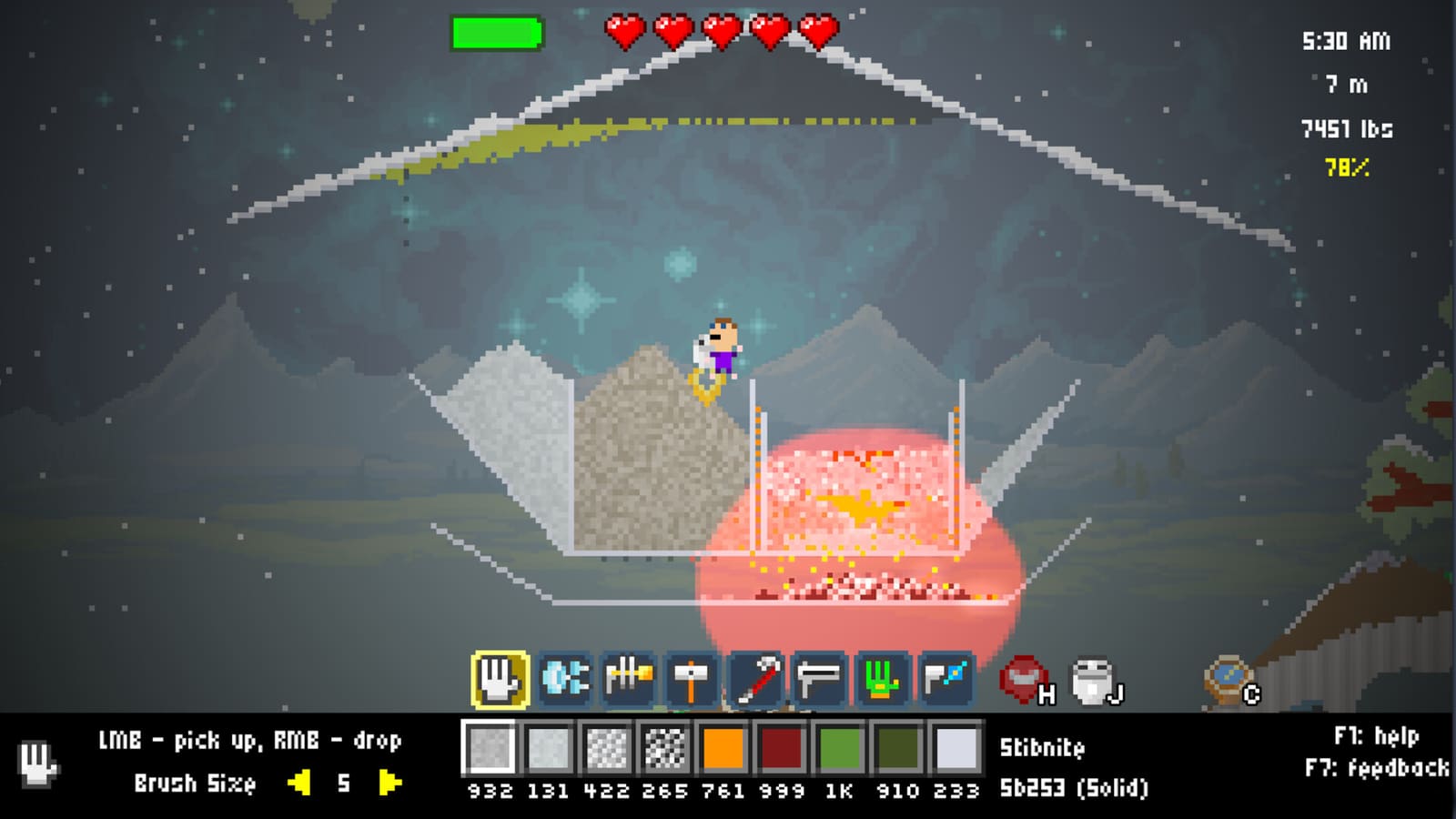
Blender Gun in Atomcraft
The Blender Gun is Atomcraft’s material-mixing tool — it forces adjacent or contained pixels to combine, react, and transform. It is essential for creating chemical reactions that would otherwise require precise manual placement, and for processing mixed material piles into useful outputs.
What the Blender Gun does
In Atomcraft, many reactions require pixels to be in direct contact. The Blender Gun solves the “touching problem” by forcing proximity — you aim at a pixel and the gun blends it with its neighbors, triggering reactions that need contact. This is critical for:
- Alloy creation — forcing Copper and Zinc into the same cell to make Brass
- Compound formation — bringing reagents together for chemical reactions
- Dead-end processing — unblocking reagent loops by mixing stuck pixels
- Forced reactions — triggering high-temperature or high-pressure combos that need pixel contact
July 29, 2026 update: Island-aware blending
The most significant Blender Gun improvement to date arrived in the July 29, 2026 update. Previous behavior allowed the Blender Gun to blend across walls — which sounds useful but caused serious problems:
- Materials could be thrown outside your forge accidentally
- Cross-contamination between separate reaction chambers
- Fuel mixing into unintended areas
The island-aware update fixed this. The Blender Gun now respects “islands” — cells separated by static pixels (walls, floors, machinery) are treated as distinct zones. Blending in one island does not affect pixels in another.
Before the update: blending near a Ceramic wall could launch pixels out of your forge.
After the update: blending near a Ceramic wall stays contained — the wall blocks the blend effect from reaching other areas.
How to use the Blender Gun
- Equip the Blender Gun from your toolbelt.
- Aim at the pixel you want to blend with its neighbors.
- Fire — the Blender Gun forces the targeted pixel and its immediate neighbors to mix.
- Watch for reactions — newly formed compounds appear where the blend occurred.
The Blender Gun has Hardness 0 after the July 2026 patch, meaning it can pass through solid pixels more easily and does not get stuck on hard materials during operation.
Common Blender Gun uses
Alloy creation
Blending is the fastest way to create alloys:
- Place Copper pixels adjacent to Zinc pixels.
- Use the Blender Gun on the boundary between them.
- The blend forces contact → Brass forms.
Dead-end reagent unblocking
Some reagent chains end in compounds that seem unreactive. The Blender Gun can force them into contact with catalysts:
- Identify a dead-end reagent (e.g., a chloride that won’t react further).
- Place a catalyst pixel adjacent to it.
- Use the Blender Gun to force the mix.
- The reaction proceeds; the dead-end unblocks.
Hypochlorous Acid chain (July 2026)
The July 2026 update added reactions for Hypochlorous Acid — previously a dead-end reagent. Use the Blender Gun to process HOCl into downstream products:
- Create Hypochlorous Acid via the chlorine water pathway.
- Add an appropriate catalyst.
- Use the Blender Gun to trigger the reaction chain.
- HOCl no longer dead-ends.
Blender Gun vs. manual placement
| Approach | Best for | Limitation |
|---|---|---|
| Blender Gun | Bulk processing, alloy borders, dead-end unblocking | Can over-blend if aimed at wrong pixel |
| Manual placement | Precise reagent ratios, small-scale reactions | Slow for large batches |
Use the Blender Gun for scale; use manual placement for precision.
Blueprint integration
The July 2026 update also added Blueprint flipping with B and N keys, useful when planning Blender Gun workflows. If you are setting up an alloy production line:
- Use the Blueprint tool to lay out the reaction chamber.
- Flip with B/N to mirror the layout for mirrored builds.
- Place reagents at the blended boundary zones.
- Use the Blender Gun on the reaction zone.
Watch: Atomcraft automation and programmable pixels
Deep links
- How to Automate Machines — bulk processing patterns
- Wiring and Logic — sensor-triggered blending setups
- Reactions Cheatsheet — full chemistry reference
- Forge Designs — reaction chamber layouts for Blender Gun workflows
The Blender Gun turns messy material piles into useful compounds. Master island-aware blending and your chemistry game accelerates significantly.
Frequently Asked Questions
Quick answers tied to this page.
What is the Blender Gun used for in Atomcraft?
The Blender Gun forces adjacent pixels to mix and react, enabling alloy creation, dead-end reagent unblocking, and compound formation where manual placement would be too slow.
What did the July 29, 2026 Blender Gun update change?
The update made the Blender Gun island-aware — it now respects walls and static pixels as boundaries. Blending across a wall no longer throws materials outside your forge or causes cross-contamination between chambers.
What does island-aware blending mean?
Islands are cells separated by static pixels (walls, floors, machinery). The Blender Gun now only affects pixels within the same island, preventing accidental cross-contamination between separate reaction chambers.
What happened to Hypochlorous Acid in the July 2026 update?
The July 2026 update added reactions for Hypochlorous Acid (HOCl), making it no longer a dead-end reagent. Use the Blender Gun to process HOCl into downstream products.
How do you create alloys with the Blender Gun?
Place Copper and Zinc pixels adjacent, then use the Blender Gun on the boundary between them. The forced contact triggers the Brass-forming reaction.